
 Compare Any Two Pages
Using the app
Read Compare Any Two Pages Results
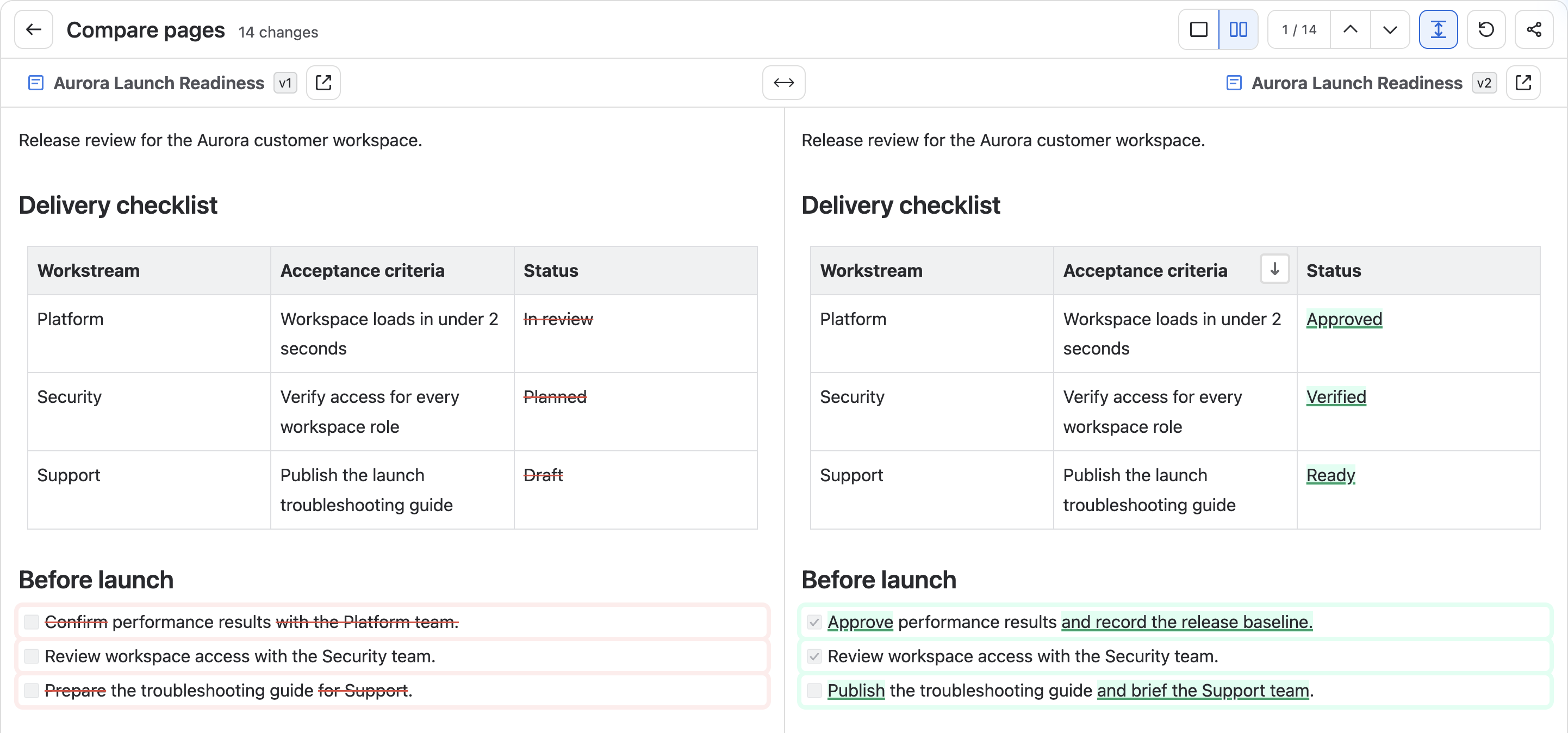
The results workspace keeps the Before and After identity visible while you review the highlighted changes. Read the header first: it tells you which snapshots are being compared and gives you every review control without modifying the source pages.
Understand the result header
| Control | What it does | Important behavior |
|---|---|---|
| Back to page selection | Returns to Page A, Page B, and Version fields. | Use it to change either source or version. The current pages remain untouched. |
| Change count | Shows the number of highlighted changes available for navigation. | A text replacement can create separate removal and addition items; the count is not a word count. |
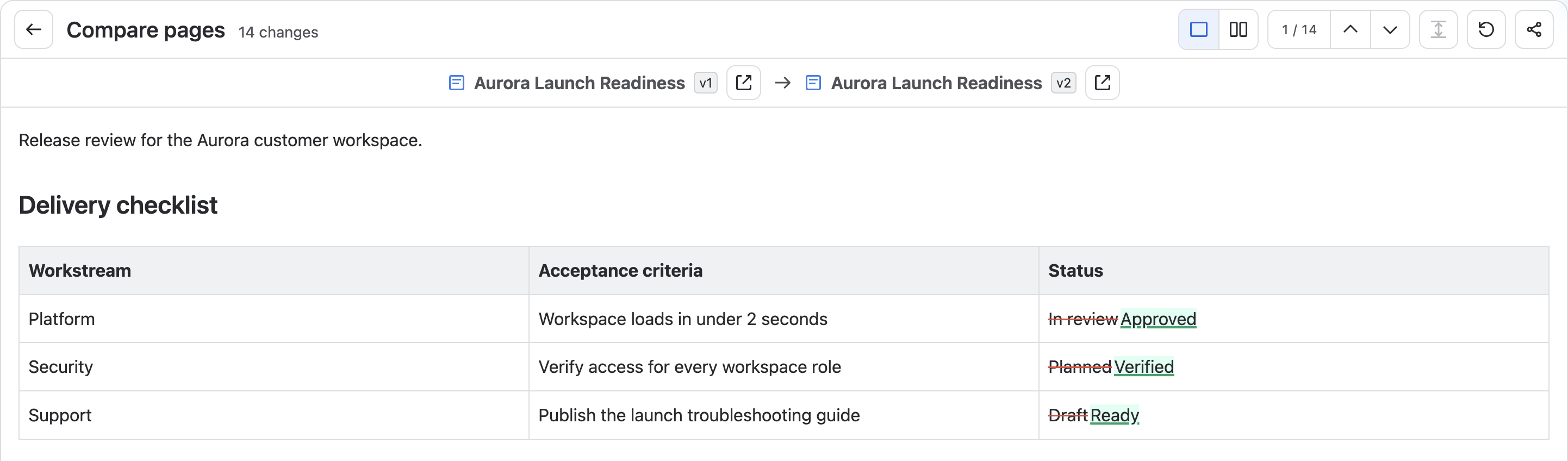
| Unified | Shows one continuous document with additions and removals in context. | Best for reading the resulting document from top to bottom. |
| Side by side | Shows Before and After in separate aligned panes. | Best for checking the original and updated wording together. |
| current / total | Shows the selected change position, such as 2 / 7. |
— / — means changes are still preparing; 0 / 0 means no navigable changes were found. |
| Previous change | Moves to the preceding change in document order. | At the first change, wraps to the last. Disabled when there are fewer than two changes. |
| Next change | Moves to the following change in document order. | At the last change, wraps to the first. Disabled when there are fewer than two changes. |
| Sync scroll | Synchronizes vertical document position and horizontal pane scrolling. | Available only in Side-by-side view. Turn it off to scroll each pane independently. Scrollbars inside a table or code block remain independent. |
| Refresh comparison | Reads the selected snapshots again and recalculates. | A side set to Latest may advance to a newly published version; a numbered version stays fixed. |
| Export | Opens the export menu. Select Export PDF to prepare the current comparison for printing. | Save as PDF in the browser print dialog. Uses the selected versions and current Unified or Side-by-side view. |
| Share comparison | Copies a link to the current fixed-version comparison. | Includes both actual versions and the current reading mode. Recipients still need access to both pieces of content. |
| Open original | Opens the corresponding Before or After content in a new Confluence tab. | Available beside a page identity when Confluence supplies a source URL. |
| Swap before and after pages | Reverses the two sides and recalculates the result. | Available in Side-by-side view. Addition and removal meanings reverse with the direction. |
When comparing with your previous visit, the Back button closes the dialog. Both sides stay on the current page; changing versions or reading modes does not update your visit record.
The identity row under the tools shows the content-type icon, page title, and actual version used on each side. Check this row before reviewing changes, especially when one selector was set to Latest version.
Choose a reading mode
- Unified presents one continuous document with removed and added content in context.
- Side-by-side shows Before and After in separate panes. Both panes remain visible on narrow screens; scroll horizontally within either document when needed.
Both modes show the same selected snapshots and use the same highlighted change ranges. Switching modes keeps the selected pages and versions. Your reading-mode preference is remembered in this browser.
Move through changes
The fixed current / total indicator sits immediately before Previous and Next. Use these controls to review changes in document order without losing your position. The selected change is brought into view and briefly emphasized; it does not create or remove a difference.
A reliable review sequence
- Confirm both titles and version badges in the identity row.
- Choose Unified for continuous reading or Side by side for positional review.
- Read the first highlighted change, then use Next change until the indicator reaches
total / total. The next click returns to the first change. With fewer than two changes, both navigation buttons are disabled. - Open either original page when you need native macros, comments, attachments, or surrounding Confluence context.
- Refresh only when you intentionally want to re-read a Latest selection or retry current content access.
Share the current comparison
- Confirm both titles and actual versions, then choose the Unified or Side-by-side view you want to share.
- Select Share comparison in the toolbar. Wait for the “Share link copied” confirmation, then paste the link into a message or document.
- When a recipient opens the link, the app reads those two versions again using that person's Confluence permissions and displays the comparison.
The link uses the actual numbered versions read for this comparison. Even if you originally selected Latest version, the link will not advance when a page is edited later. The link itself does not grant content access.
Export a comparison as PDF
- Confirm both page titles and actual versions, then choose Unified or Side by side.
- Select Export → Export PDF in the results toolbar and wait for the browser print dialog.
- Choose Save as PDF (or the equivalent PDF option in your system print dialog), review the preview, and save the file.
The printable document keeps the selected snapshots and difference highlights, expands collapsed sections, and removes the app controls. Long comparisons continue across multiple pages. Supported text remains selectable and searchable; copying complex scripts can vary with the browser and PDF viewer.
If highlight colors are missing, enable Background graphics. Unified view suggests A4 portrait; Side-by-side suggests A3 landscape. If the side-by-side preview is too narrow, choose A3 landscape in the print dialog. Final paper size, fonts, and pagination depend on browser and system settings.
Macros and media retain available previews or readable fallbacks. YouTube, Vimeo, and Spotify use saved link metadata and bundled illustrations, rather than live players or remote thumbnails. Whiteboards and databases retain their reference cards, not their internal content.
Change colors and meaning
- Green treatment marks content added in After.
- Red treatment and strike-through mark content removed from Before.
- Modified content keeps removed and added segments in the same context.
- Reordered or structurally changed content can appear as removed and added regions. Check both snapshots before treating those regions as separate content changes.
Use the Before/After labels, strike-through, placement, and surrounding text together with the highlight colors.