
 Compare Any Two Pages
Using the app
Start a Confluence Comparison from the App Page
Use this entry when neither side of the comparison is fixed yet. The app page gives you full control over the content and version used on each side.
Open Compare Any Two Pages
- In Confluence, open Apps from the main navigation.
- Select Compare pages. The app opens its Compare Any Two Pages home.
Choose Before and After
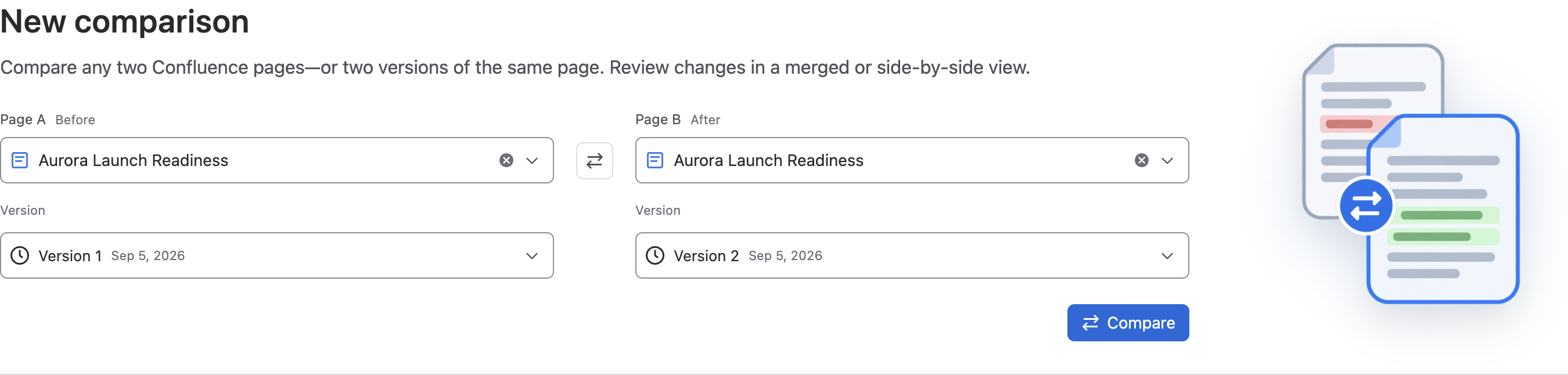
The selector is directional: Page A is Before, and Page B is After. Added content is therefore content present in After but not Before; removed content is present in Before but not After.
| Control | What it does | When to use it |
|---|---|---|
| Page A · Before | Chooses the baseline content. | Select the baseline page or an earlier published state. |
| Version under Page A | Chooses which snapshot of Page A is used. | Keep Latest version for the current state, or choose a numbered version for a fixed historical baseline. |
| Swap Page A and Page B | Swaps both selected pages and their version choices. | Use it when the pages are correct but the comparison direction is reversed. |
| Page B · After | Chooses the content being reviewed against the baseline. | Select the newer page, approved copy, or later state. |
| Version under Page B | Chooses which snapshot of Page B is used. | Compare the latest state or pin a specific later version. |
| Compare | Reads the two selected snapshots and opens the results workspace. | The button becomes available after both pages are selected. It never edits either page. |
Select a page, Live doc, or Blog post
Open either page selector, then use one of these inputs:
- Type part of the title to search content you can access.
- Paste a full URL from the same Confluence site.
- Enter a numeric content ID.
- Open the selector without typing to see recently edited supported content.
Each result shows its content type, space, and last-modified date when Confluence supplies that information. Only Pages, Live docs, and Blog posts that the current user can access are shown. Use Load more pages when additional search results are available.
Choose the version used on each side
The two Version fields are independent.
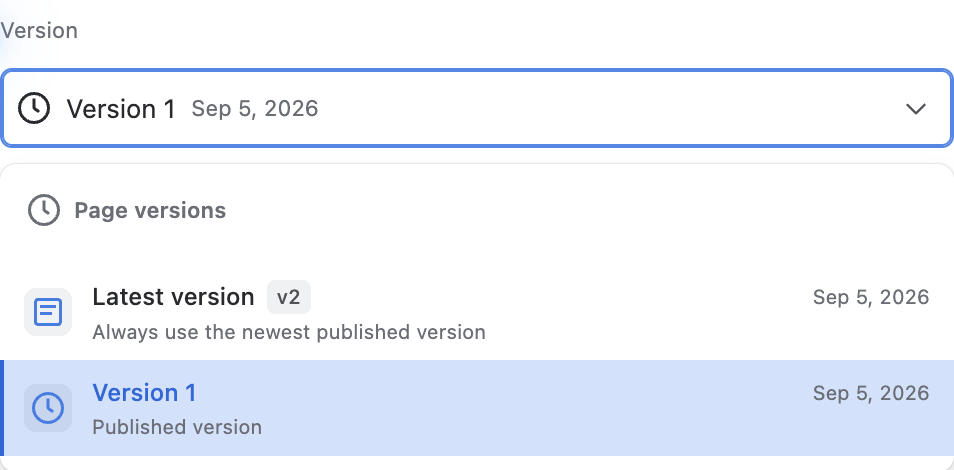
- Latest version · vN means “read the latest available version when the comparison runs.” If the page is edited later, Refresh comparison can read that newer state.
- Version N pins that side to one historical snapshot. Its version date and update message are shown when available.
- Versions are listed newest first. Select Load older versions to continue through a longer history.
- The newest numbered revision is represented once by Latest version · vN instead of appearing as a duplicate numbered option.
- Choosing a different page resets that side to Latest version, preventing a version number from the previous page being reused accidentally.
Common version combinations:
- Same page, Version 3 → Latest version: review how one page has evolved.
- Different pages, Latest version → Latest version: compare two current documents.
- Different pages, Version 6 → Version 9: reproduce a fixed audit comparison that will not drift when either page changes.
Reopen a recent comparison
After a successful comparison, Recent comparisons can reopen up to 10 page-and-version pairs for the current user. A reopened item restores the exact numbered versions that were compared, even when the original selection used Latest version. Recent comparison records store references and version numbers, not page body content.
When this entry is the better choice
- You need to search for both pages.
- You are comparing content from different spaces.
- You are reopening a recent comparison from the app home.
- You want to compare two versions without first navigating to the source page.