
 Compare Any Two Pages
Getting started
Page Compare user guide
Use Compare Any Two Pages to see what changed between Confluence pages or versions, with tables, tasks, and text in context.
Your first comparison in three steps
-
Choose the content
Set Page A as Before and Page B as After. Search by title, paste a page URL, or enter its content ID. See the page-selection steps →
-
Choose each version
Keep Latest version or select a numbered historical version on either side. To review one page over time, select it on both sides and choose an earlier version for Before. See the version selector →
-
Run the comparison and read the result
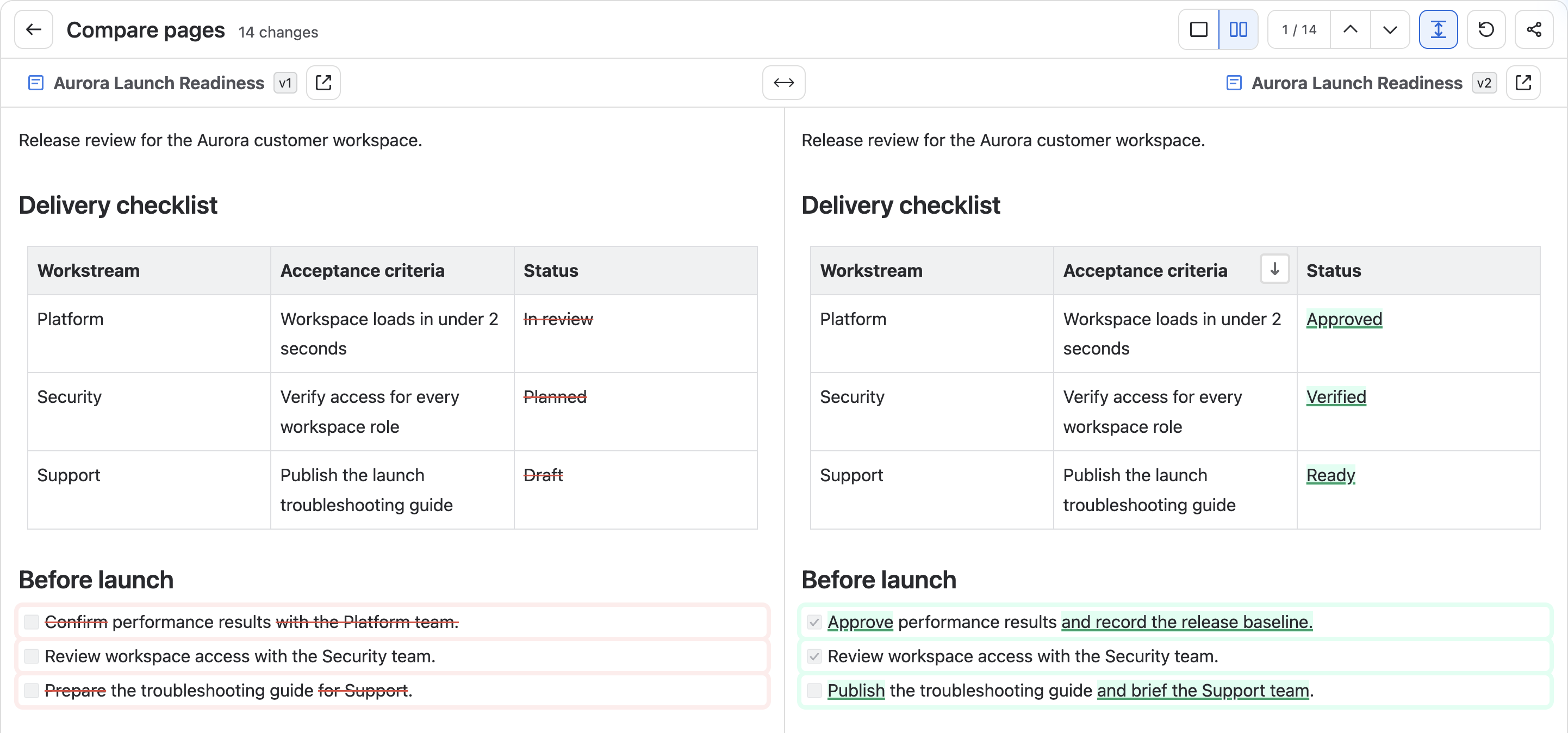
Select Compare, choose Unified or Side by side, then follow the highlighted changes with Previous and Next. Explore the result controls →
Choose how to start
Start from the app page
Open Compare Any Two Pages from Confluence Apps when you want to choose both the Before and After content.
Start from the current page
Open the page’s ••• menu and choose Compare this page when the current content should already be selected.
Compare with your previous visit
Select the last-viewed entry below the page title to see what changed since your previous visit.
All entry points use the same comparison workspace and results.
What you can compare
- Two different Pages, Live docs, or Blog posts.
- Two historical versions of the same content.
- A historical version against the latest version.
- The version recorded on your previous page visit against the current version.
- A Page against another supported content type that you can access.
What the result includes
- Unified and Side-by-side reading modes.
- Highlighted additions, removals, and text replacements in document context.
- Previous and Next change navigation with a fixed current/total indicator.
- Read-only rendering for text, headings, lists, tables, links, media, macros, and other Confluence content, with explicit fallbacks when a native preview is unavailable.
- Recent comparison references for quickly reopening a successful comparison.
Start here
- Getting started — complete a first comparison.
- Start from the app page — choose both sides from Compare Any Two Pages.
- Start from the current page — use the page’s More actions menu.
- Compare with your previous visit — see what changed since you last visited the page.
- Read comparison results — use views and change navigation.
- Permissions and data — understand access, recent comparisons, and page visit records.